How to archive an employee in Skoop
When someone leaves your organization, you can archive them in Skoop. An archived employee no longer counts as a "seat" within the tool, so you won't be billed for them. Archiving preserves all historical data (reviews, survey responses, ... ), so you can always look back at past check-ins even after someone has left.
Written By Stijn Vanlerberghe
Last updated 2 months ago
How to archive an employee
When someone leaves your organization, you can archive them in Skoop. An archived employee no longer counts as a "seat" within the tool, so you won't be billed for them. Archiving preserves all historical data (reviews, survey responses, …), so you can always look back at past check-ins even after someone has left.
How to archive an employee
There are two ways to archive an employee:
Option 1: Set an end date (for future departures)
If you know when an employee is leaving, you can set their end date and Skoop will archive them automatically on that date.
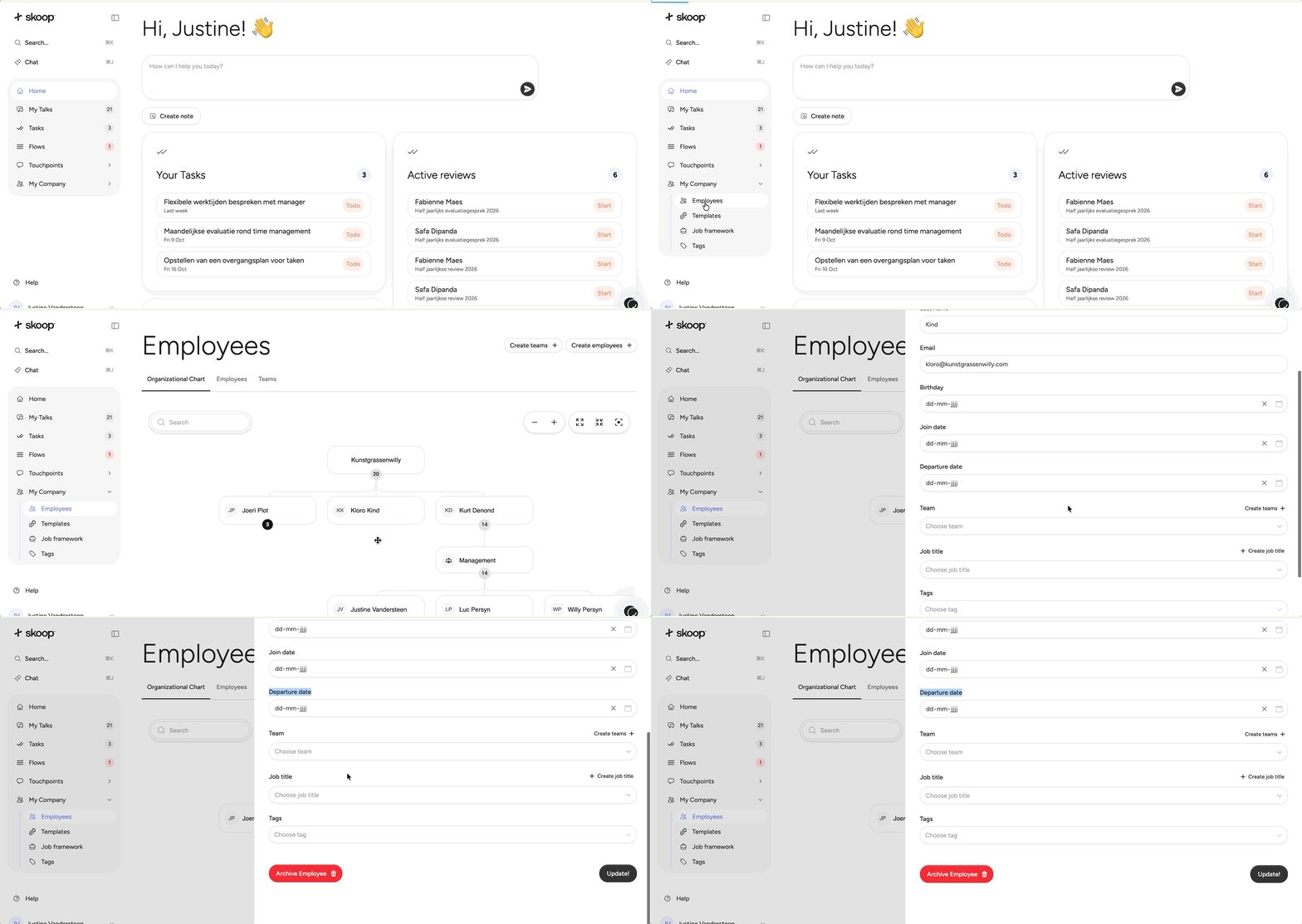
Go to the employee's profile page.
Click the gear icon in the top right corner.
Enter the employment end date.
Skoop will automatically archive the employee on that date.
Option 2: Archive immediately
If the employee has already left, you can archive them right away.
Go to the employee's profile page.
Click the About tab.
Click the archive option.
The employee is archived instantly.
You can archive someone at any time through the About page, regardless of whether they have a stated departure date.
What happens when you archive an employee?
The employee disappears from active team lists.
They no longer count toward your seat limit.
Historical data (reviews, surveys, conversations) is preserved.
Restoring an employee
If an archived employee returns to your organization, you can restore them at any time.
Go to the Employees page.
Toggle the Show archived switch to see archived employees.
Open the archived employee's profile.
Click the About tab.
Click Restore to bring them back to active status.
Once restored, the employee counts as an active seat again and will appear in team lists. Any flows that match the employee (based on their tags) will automatically create new milestones for them.
Was this helpful?
Still need help? Ask the team