Connect Skoop to Microsoft Teams
Get Skoop up and running inside Microsoft Teams in just three clicks. There's nothing to download and no setup required, simply search, add, and open.
Written By Stijn Vanlerberghe
Last updated 29 days ago
Before you start
You need access to Microsoft Teams (desktop, web, or mobile app).
Depending on your organisation's settings, your Teams administrator may need to approve third-party apps. If you can't find or add Skoop, see “Can't find or add Skoop?” below.
Step 1 - Search for Skoop
In the search bar at the top of Microsoft Teams, type Skoop. In the results, look under Apps and Agents and click the Skoop entry (you'll recognise it by the hand logo and the line "Continuous performance management, made simple.").
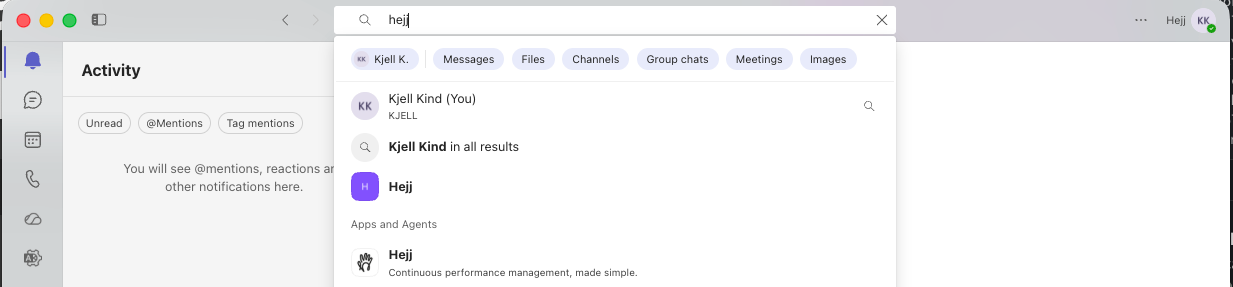
Step 2 - Add the app
On the Skoop app page, click the purple Add button.
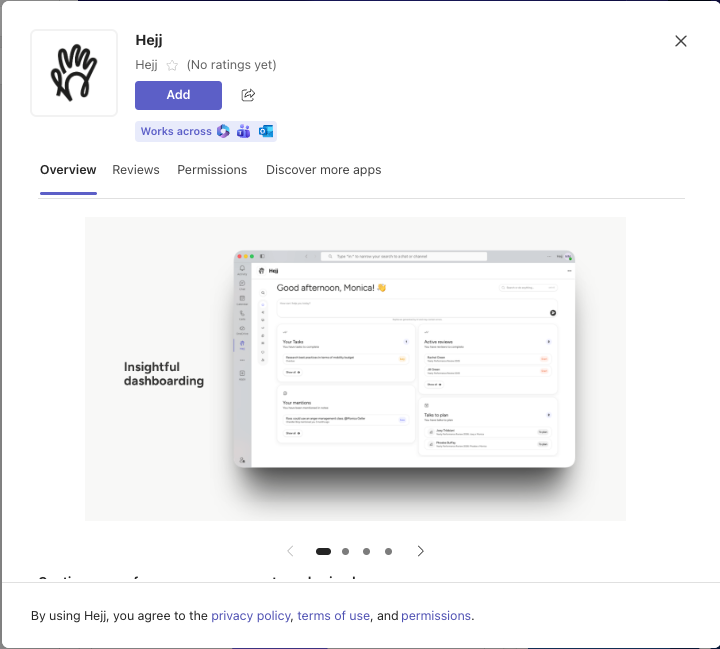
Step 3 - Open Skoop
When you see the Added successfully! confirmation, click Open to launch Skoop right inside Teams.
That's it - Skoop now lives in your Teams sidebar and is ready to use.

A few handy tips
Pin it for quick access. Right-click the Skoop icon in your Teams sidebar and choose Pin so it's always one click away.
Works where you do. Skoop runs across Microsoft Teams and Outlook, so you can pick up feedback and check-ins without switching tools.
Can't find or add Skoop?
If Skoop doesn't appear in your search results, or the Add button is greyed out, it's usually because your organisation requires apps to be approved first. Ask your Microsoft Teams administrator to approve Skoop, then try again.
Still stuck? Reach out to our support team and we'll get you sorted.
Was this helpful?
Still need help? Ask the team